What the Cloudairy connector does

The Cloudairy connector is an MCP (Model Context Protocol) server. Add it to Claude, ChatGPT, GitHub Copilot, Cursor or Microsoft Copilot Studio and your assistant can draw diagrams with Cloudairy and work with the boards in your workspaces.

Preview diagrams in the chat

Nothing is saved until you click “Edit in Cloudairy”.

Save and generate boards

Save a board to the workspace you choose, or let Cloudairy AI design it.

Find and read your boards

The connector cannot edit or delete existing boards.

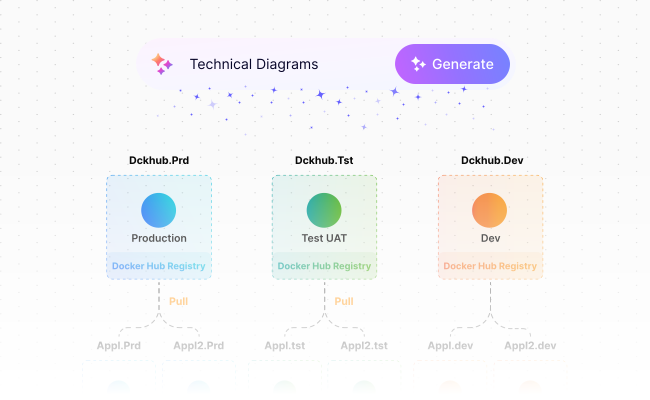
Technical diagrams generated with Cloudairy AI

What you can do

Draw, save and find Cloudairy boards without leaving your AI assistant. The connector cannot edit or delete existing boards.

Preview a diagram in the chat

Flowcharts, sequence, ER, class and state diagrams, org charts, mind maps, fishbone and more. Nothing is saved until you click “Edit in Cloudairy”.

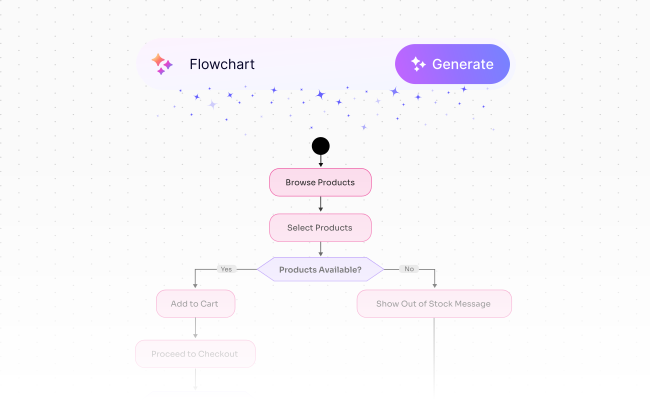
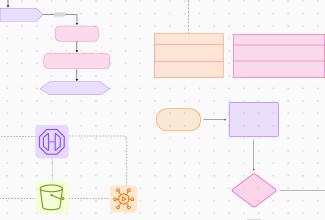
Flowchart preview

Cloud architecture diagrams

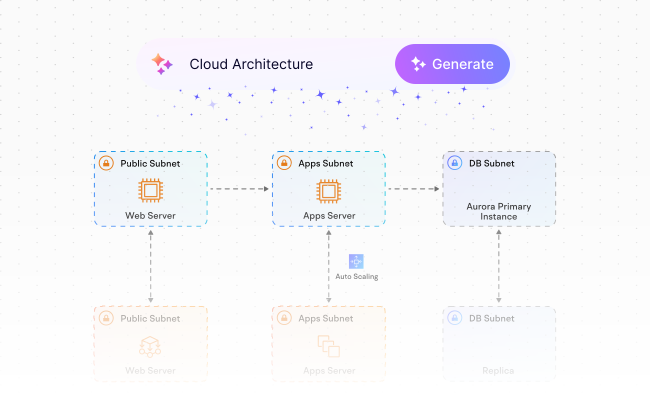
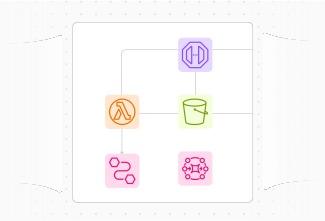
Preview cloud architecture with AWS, Azure and GCP icons.

Cloud architecture diagram preview

Save a board

Save a diagram as an editable Cloudairy board in the workspace you choose.

Saved Cloudairy boards

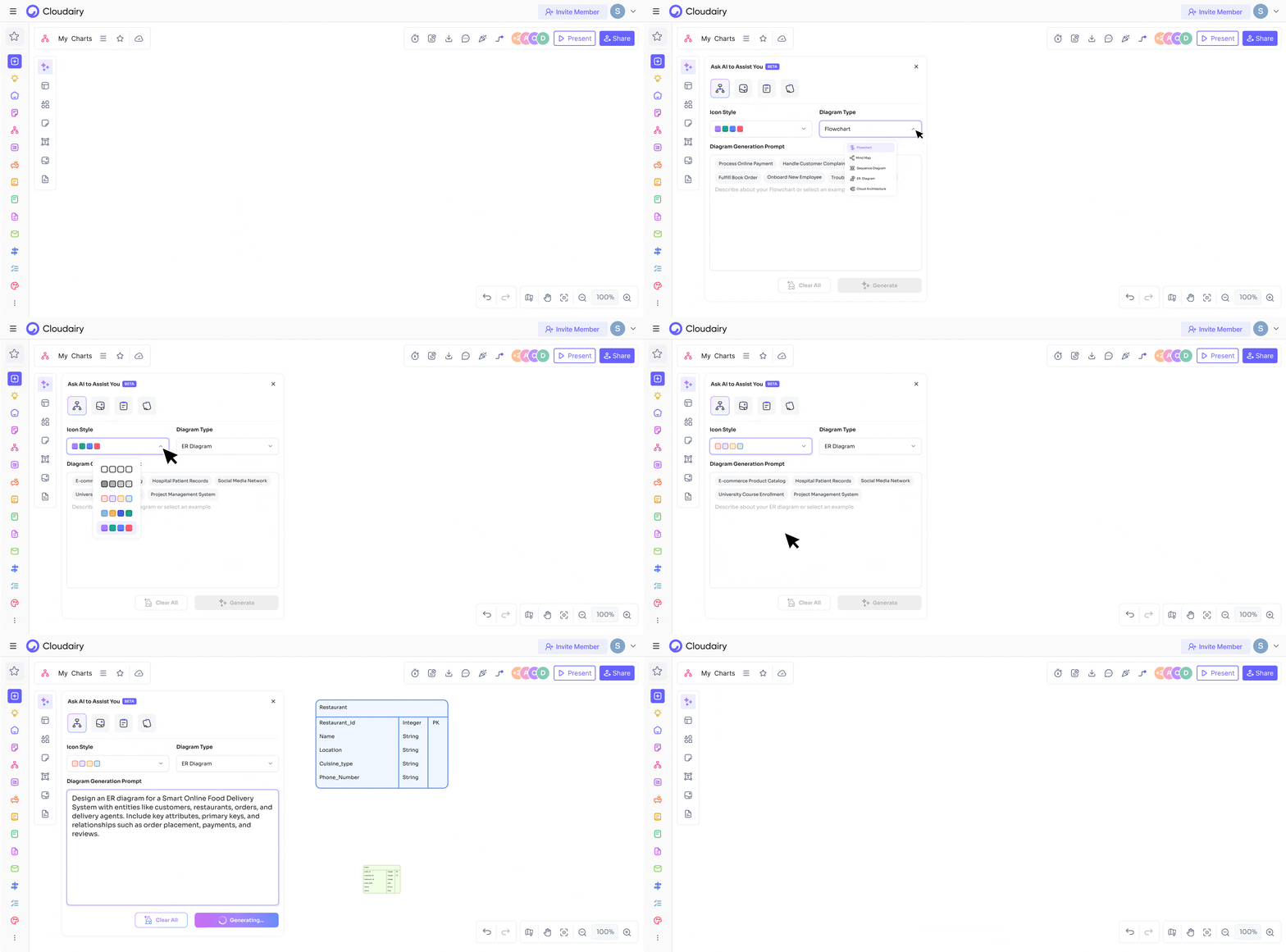
Generate with Cloudairy AI

Cloudairy’s own AI designs the diagram. This uses your workspace’s AI credits.

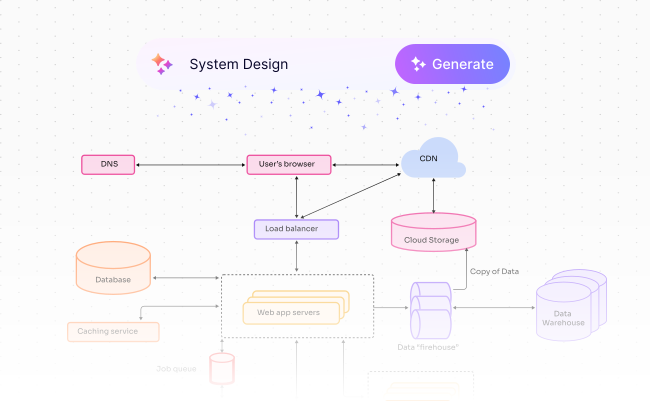
Diagram designed by Cloudairy AI

Find and read boards

List workspaces, list or search boards, and read a board’s content.

Finding boards in a workspace

Sequence and ER diagrams

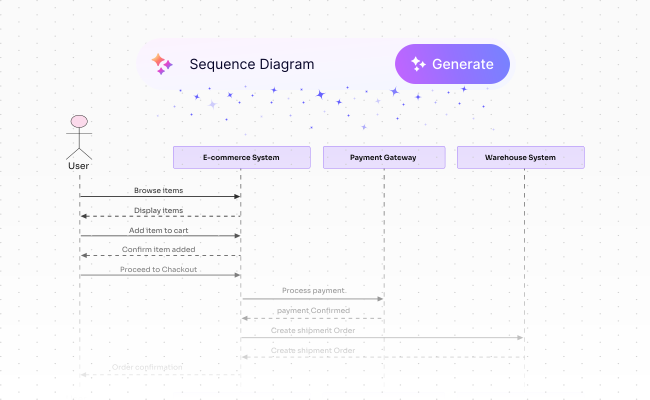
Preview sequence diagrams and ER diagrams, then save the ones you want to keep.

Sequence diagram preview

Set up

Add the server URL https://mcp.cloudairy.com/mcp to your assistant. On first use the assistant opens a Cloudairy sign-in and consent page; sign in, review the permissions and click Allow.
Claude (claude.ai, Desktop, mobile)

Settings → Connectors → Add custom connector → paste the server URL.

Claude Code

Run claude mcp add --transport http cloudairy https://mcp.cloudairy.com/mcp, then run /mcp to sign in.

ChatGPT

Settings → Apps → Developer mode → Create → paste the server URL, authentication OAuth. Available on plans that allow custom apps.

VS Code (GitHub Copilot)

Command Palette → “MCP: Add Server” → HTTP → paste the server URL.

Cursor

Settings → MCP → Add new MCP server → type streamable-http, URL https://mcp.cloudairy.com/mcp.

Microsoft Copilot Studio

Tools → Add a tool → Model Context Protocol → server URL, OAuth 2.0 with dynamic discovery.

Permissions

The Cloudairy consent page lists what the assistant may do. You review these permissions before you click Allow.

Read your artifacts

List workspaces, list, search and read boards.

Create new artifacts

Save new boards.

Use Cloudairy AI (uses your team’s AI credits)

Generate boards with Cloudairy AI.

Tools

The connector gives your assistant these eight tools.

list_workspaces

Lists your workspaces and your role in each.

list_artifacts

Lists boards in a workspace, newest first.

search_artifacts

Finds boards by name.

get_artifact

Reads one board’s name, link and content.

get_artifact_guide

Gives the assistant Cloudairy’s diagram format.

preview_diagram

Shows a diagram in the chat without saving it.

create_artifact

Saves a diagram as a new board (no AI credits).

generate_artifact

Has Cloudairy AI design and save a board (uses AI credits).

Example prompts

Try these in your assistant once the connector is added.

“Using Cloudairy, show me a flowchart of an employee onboarding process.”

“Draw an AWS architecture for a web app with CloudFront, ALB, ECS and RDS in Cloudairy and save it to my workspace.”

“List my Cloudairy workspaces and my five most recent boards.”

“Find my Cloudairy board about ‘login flow’ and explain it.”

“Have Cloudairy AI generate a sequence diagram of a password reset flow.”

AWS architecture diagram with AWS icons in Cloudairy

Disconnect, limits and privacy

You can remove the connection at any time.

Disconnect in Cloudairy

Profile settings → Connected apps → remove the connection. Access ends right away.

Other ways to disconnect

Changing your password, signing out of all devices or deleting your account also removes every connection. You can also remove Cloudairy in the assistant’s own settings.

Limits

60 tool calls per minute per user, 10 saves per minute, 5 AI generations per minute. A diagram can be up to 50,000 characters.

Trust is the foundation

Secure, compliant, and enterprise-ready.

Cloudairy safeguards your work with enterprise-grade security, compliance, and access controls — so your teams can create, collaborate, and scale with confidence.

Visit the Trust Center

Encryption at rest and in transit

Every board, doc and file is encrypted with AES-256 at rest and TLS 1.2+ in transit.

Role-based access control

Workspace, team and guest roles so the right people see the right work, with SSO and SCIM on Enterprise.

Your data, your control

Export or delete your content whenever you want — your work is never used to train models.

  • Independently audited Annual attestation SOC 2 TYPE II
  • Information security Certified ISMS ISO 27001
  • EU data protection GDPR compliant GDPR COMPLIANT

SOC 2 Type II · GDPR · ISO 27001 · Penetration tested annually

Frequently asked questions

Does it use my AI credits?

Only generate_artifact uses your workspace’s AI credits. Previewing and saving a diagram with create_artifact uses no AI credits.

Can it delete my boards?

No. The connector cannot edit or delete existing boards.

Is anything saved when I preview a diagram?

No. Nothing is saved until you click “Edit in Cloudairy”.

How do I disconnect?

In Cloudairy, go to Profile settings → Connected apps and remove the connection; access ends right away. You can also remove Cloudairy in the assistant’s own settings.

Where is my data stored?

See the AI Assistant Connectors section of the Privacy Policy.

Connect Cloudairy to your AI assistant

Add the server URL https://mcp.cloudairy.com/mcp to your assistant, sign in to Cloudairy and click Allow.