
Account & Settings
Manage your personal profile, security, and preferences from the Profile menu (top-right avatar → Profile).
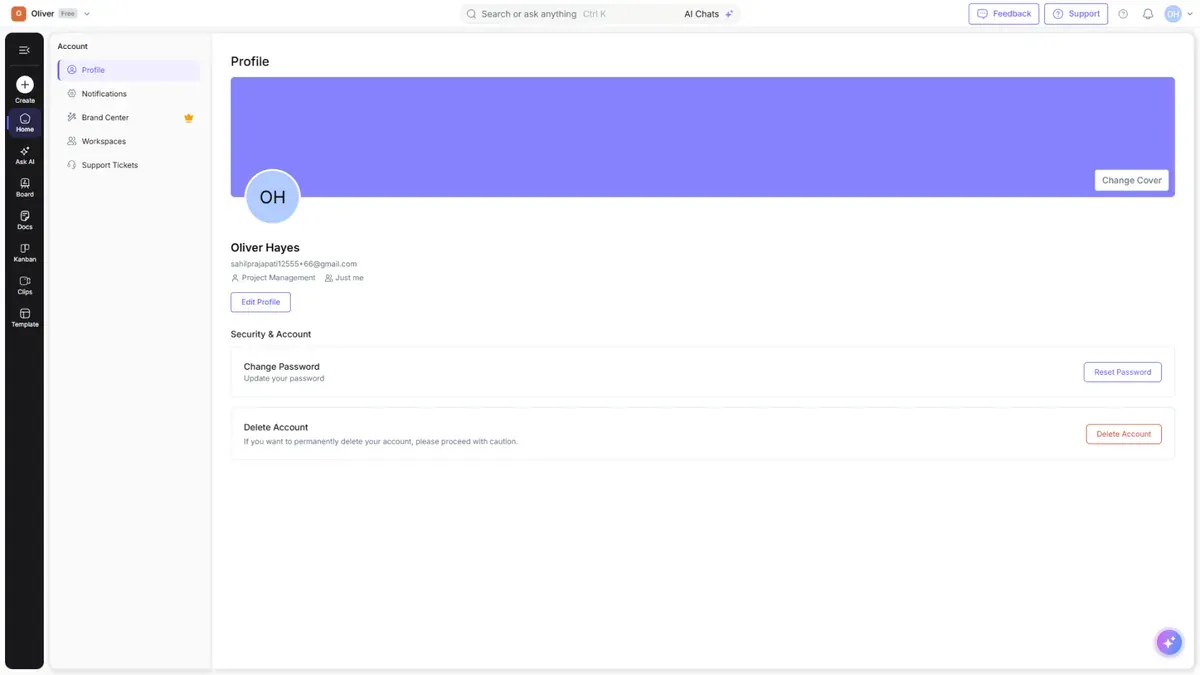
Profile
Your profile holds your name, avatar, and role details.
| Setting | What it does |
|---|---|
| Edit Profile | Update your details (see fields below) |
| Change Cover | Change your profile cover image |
| Avatar | Your profile picture / initials |
Editing your profile
- Open the Profile menu (top-right avatar) → Profile.
- Select Edit Profile.
- Update any of these fields: First name, Last name, Role, Company, Industry, and About.
- Save your changes.
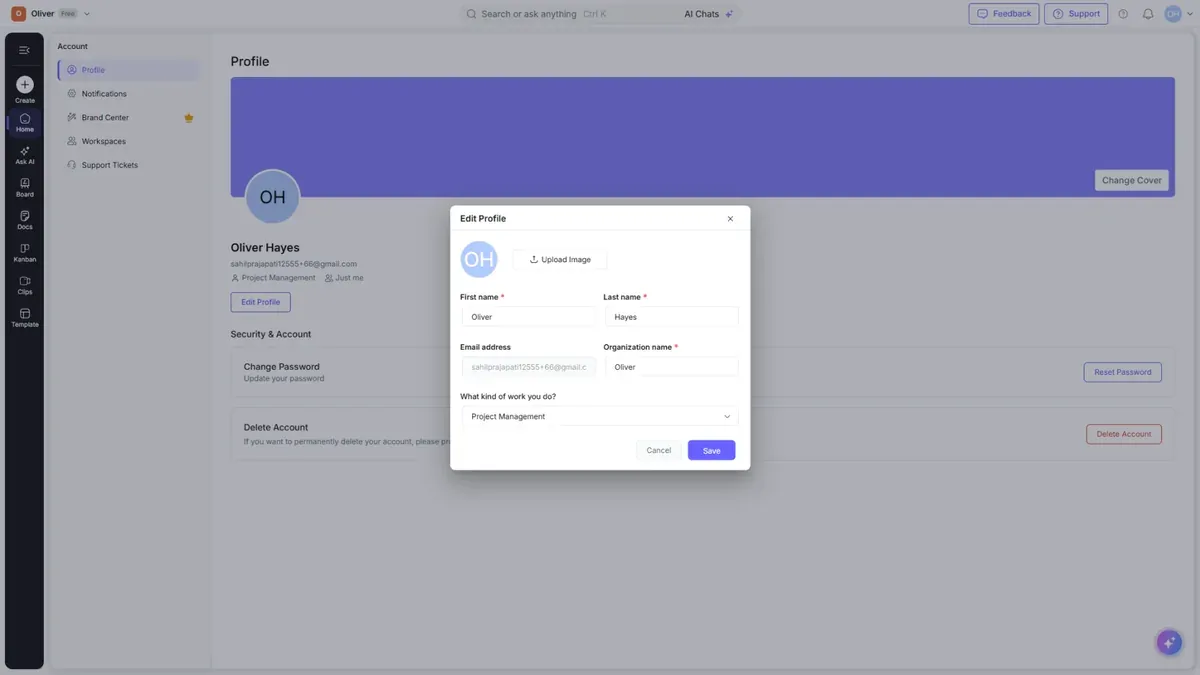
To change your cover image, select Change Cover on the profile banner and upload a new image.
Security & Account
Changing your password
- Go to Profile → Security & Account.
- Under Change Password, select Reset Password.
- Follow the prompts to set a new password.
Changing your email
- Go to Profile → Security & Account.
- Select Change Email.
- Enter your new email address.
- Verify it using the code sent to the new address.
Deleting your account
- Go to Profile → Security & Account.
- Select Delete Account.
- Confirm when prompted — this permanently removes your account.
Warning: Deleting your account is permanent and can't be undone. Export anything you want to keep first — see Import & Export. If you only want to leave a team, remove yourself from the workspace instead (see Workspaces & Teams).
Brand Center 🔒
Brand Center lets you store your organization's brand assets so your boards stay on-brand. Available on paid plans. From Brand Center you can manage:
| Asset | What it's for |
|---|---|
| Logos | Upload your company logos to drop onto boards |
| Brand colors | Save your palette so it's one click away in the editor |
| Fonts | Add brand fonts for consistent typography |
Open Profile → Brand Center, then add or remove logos, colors, and fonts. They become available as a branded theme you can apply to any board.
Adding brand colors
Open Profile → Brand Center. Under Colors, choose Add color, pick the colour with the picker or paste a HEX value, and give it a name — for example "Brand Orange". Saved colours then appear in the colour options when you style shapes and text on a board.
Adding brand fonts
Under Fonts, upload your brand's font files. Once added, they're available to use across your boards.
Who can manage Brand Center
Brand Center is managed by workspace administrators. If you don't see the option to edit it, ask an admin on your workspace. If Brand Center is locked, it's available on a paid plan — upgrade to unlock it.
Single sign-on (SSO)
Cloudairy supports single sign-on through SAML 2.0, so your team can sign in with your existing company identity provider instead of a separate Cloudairy password. SSO with SAML 2.0 is available on the Business and Enterprise plans. Enterprise adds more identity providers (Okta, OneLogin, Auth0), two-factor authentication, domain control, and compliance certifications (SOC 2, PCI, GDPR, ISO 27001).
Which identity providers are supported?
SSO works with any SAML 2.0 identity provider, including Okta, Microsoft Entra ID (Azure AD), Google Workspace, OneLogin, and Auth0.
Setting up SSO
SSO is configured together with the Cloudairy team so your domain and identity provider are verified correctly:
- Contact support or your Cloudairy account manager to enable SSO for your workspace.
- Have your identity provider's SAML details ready — the sign-on URL, the entity ID (issuer), and the signing certificate.
- Once it's configured, your team signs in with your company login, and you can require SSO for everyone on your domain.
If you're not on a plan that includes SSO yet, mention it when you reach out and the team will walk you through the options.
Notification settings
Control which alerts you receive under Notifications in your account settings. See Notifications for the notification center itself.
Account menu
The Profile menu also gives you quick access to:
- Profile — these settings
- Archived — your archived items 🔒
- Logout — sign out