
Kanban & Project Management
Kanban boards help you plan and track work with columns and cards. Select Kanban in the left rail to open the Kanban hub.
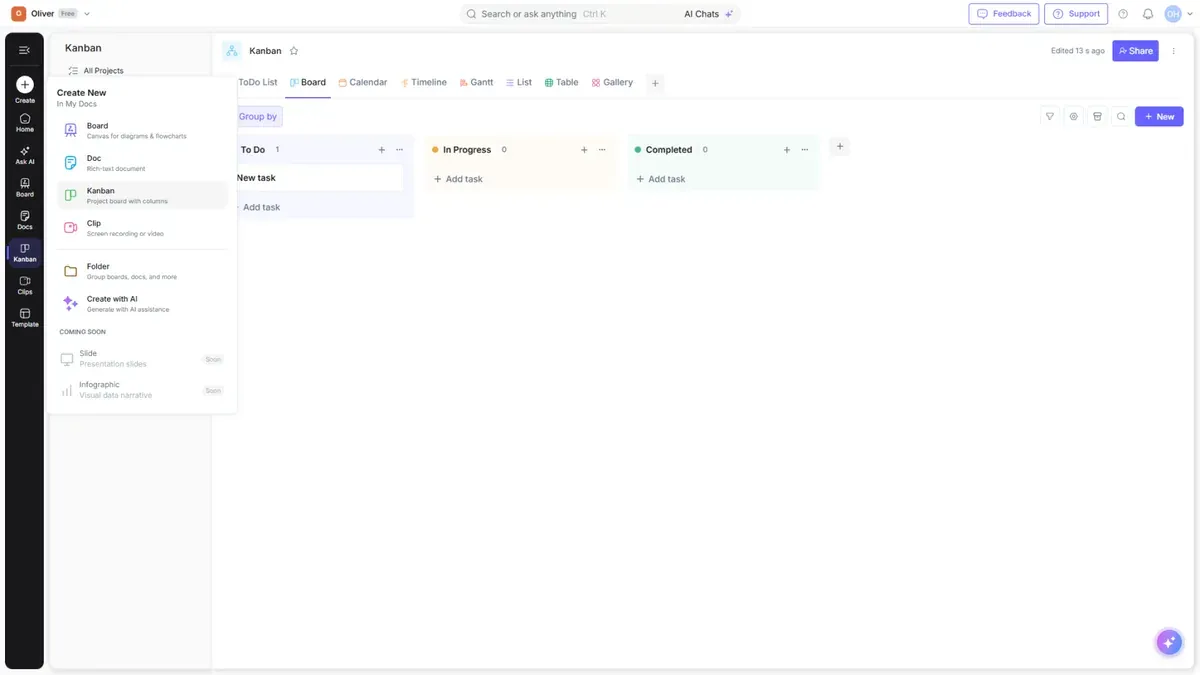
The Kanban hub
| View | Shows |
|---|---|
| All Projects | Every project board you can access |
| My Projects | Boards you created |
| Favourites | Boards you've starred |
| Shared with me | Boards others shared with you |
Working with a Kanban board
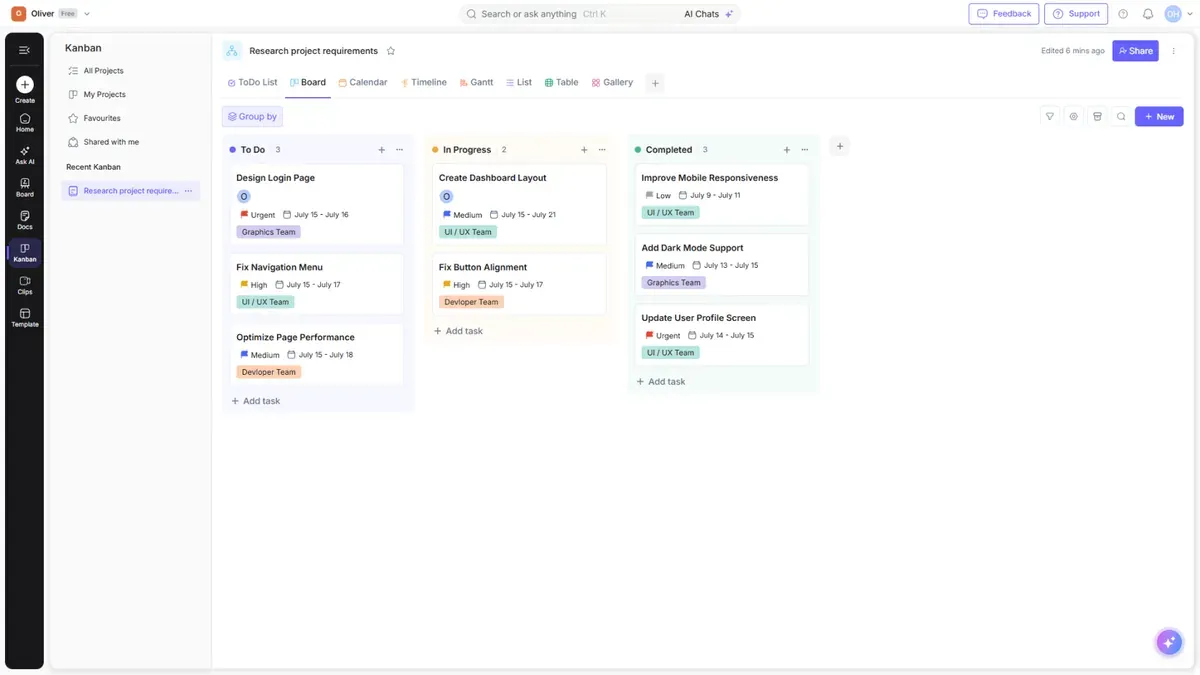
Open a project (or create one from the Create menu) to see your columns and cards.
- Columns represent stages of work (for example: To Do, In Progress, Done).
- Cards are individual tasks — drag them between columns as work progresses.
- Cards can hold details like assignees, status, and descriptions.
Task table view
For a spreadsheet-style view of your tasks, switch to the task table — useful when you want to scan, sort, and edit many tasks at once.
What views are available in a Kanban board?
A Kanban board can show the same tasks in eight different views, listed as tabs across the top of the board: ToDo List, Board, Calendar, Timeline, Gantt, List, Table, and Gallery. Switching views does not move or change your tasks — it only changes how they are laid out. Board is the familiar column view, Calendar and Timeline lay tasks out by date, Gantt shows scheduling and dependencies, List and Table are compact row views for scanning and bulk editing, and Gallery shows tasks as cards.
What is the plus (+) Add View icon in the Kanban board for?
The + at the end of the view tabs adds another view to the same board. Selecting it opens Add a new view, where you choose one of the same eight view types (ToDo List, Board, Calendar, Timeline, Gantt, List, Table, Gallery). This is worth knowing because the + does not create a new board or a new project — it adds another way of looking at the tasks you already have. You can keep several views on one board, for example a Board view for daily standups and a Gantt view for scheduling.
What are the default Kanban board statuses?
A new Kanban board starts with three columns, and those columns are the statuses: To Do (blue), In Progress (orange), and Completed (green). Each column header shows a live count of the tasks in it. Statuses are not a fixed list — you add another status by adding another column with the + to the right of the last column, and you change a column's colour from its … menu. That same menu also lets you move a column left or right, or Watch the column to follow changes in it.
Documents use a separate set of statuses of their own — a document's status is set on the document, not on a Kanban column, so the two lists are independent.
How do I use Group By in a Kanban board?
Group by is in the board toolbar and re-arranges the tasks on screen into groups without changing the tasks themselves. You can group by Status, Priority, Assignee, or Labels, or choose None to turn grouping off. None is the default and is shown with a checkmark. Grouping by Assignee, for example, is a quick way to see how work is spread across the team; grouping by Priority surfaces what is urgent regardless of which column a task sits in.
How do Kanban board filters work?
The filter control in the board toolbar narrows which tasks are shown. Each filter is a row made of a field, an operator, and a value. The fields you can filter on are Status, Priority, Tags, Assignee, and Created by, and the operator is Is. Select + Add filter to stack more than one condition, use the trash icon on a row to drop that condition, and use Clear all to remove every filter at once. Filters take effect when you select Apply.
Note that the same information is called Tags in the filter list and Labels in Group by — they refer to the same thing.
How do I restore a deleted task in a Kanban board?
Tasks in a Kanban board are archived rather than deleted. Opening a task's … menu gives you Rename, Move, Duplicate, and Archive — there is no Delete on a task, so archiving is how a task is removed from the board.
To get an archived task back, select the archive (box) icon in the board toolbar. That opens the Archived task panel, which lists everything you have archived and has a search box for finding a specific task. Hover over the task you want and select Restore; the task returns to its column and the column's count goes back up. The red delete icon next to Restore in that panel permanently deletes the task, and that cannot be undone — so use Restore unless you are certain.
What does the Duplicate option do in a Kanban board?
Duplicate is in a task's … menu, alongside Rename, Move, and Archive. It makes a copy of that task on the same board, which saves re-typing when several tasks share the same shape — a recurring checklist, a per-customer onboarding task, or a template task you fill in each sprint. Duplicate copies the task only; it does not duplicate the whole board or the column.
Tip: Kanban boards work well next to a diagram board — plan the work visually, then track it on the Kanban board.