
Boards & the Canvas Editor
Boards are the heart of Cloudairy — an infinite canvas where you draw diagrams, whiteboard ideas, and design cloud architecture. This page covers finding your boards and using every part of the editor.
The Board hub
Select Board in the left rail to see all your boards, filtered by:
| View | Shows |
|---|---|
| All Boards | Every board you can access |
| My Boards | Boards you created |
| Favourites | Boards you've starred |
| Shared with me | Boards others shared with you |
| Recent Boards | Boards you opened recently |
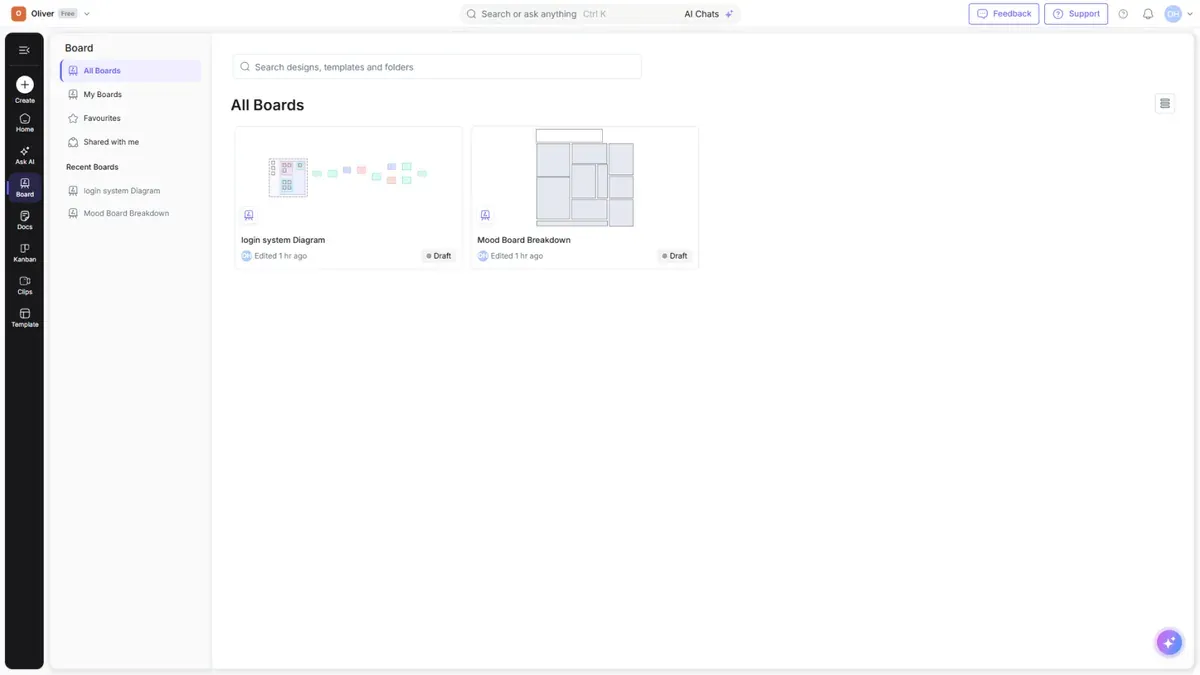
Use the search bar to find a board, template, or folder, and switch between grid and list views.
Opening the editor
Open any board (or create a new one) to enter the canvas editor. The canvas is infinite — pan by dragging, zoom with the controls at the bottom right, and Fit to screen to frame everything.
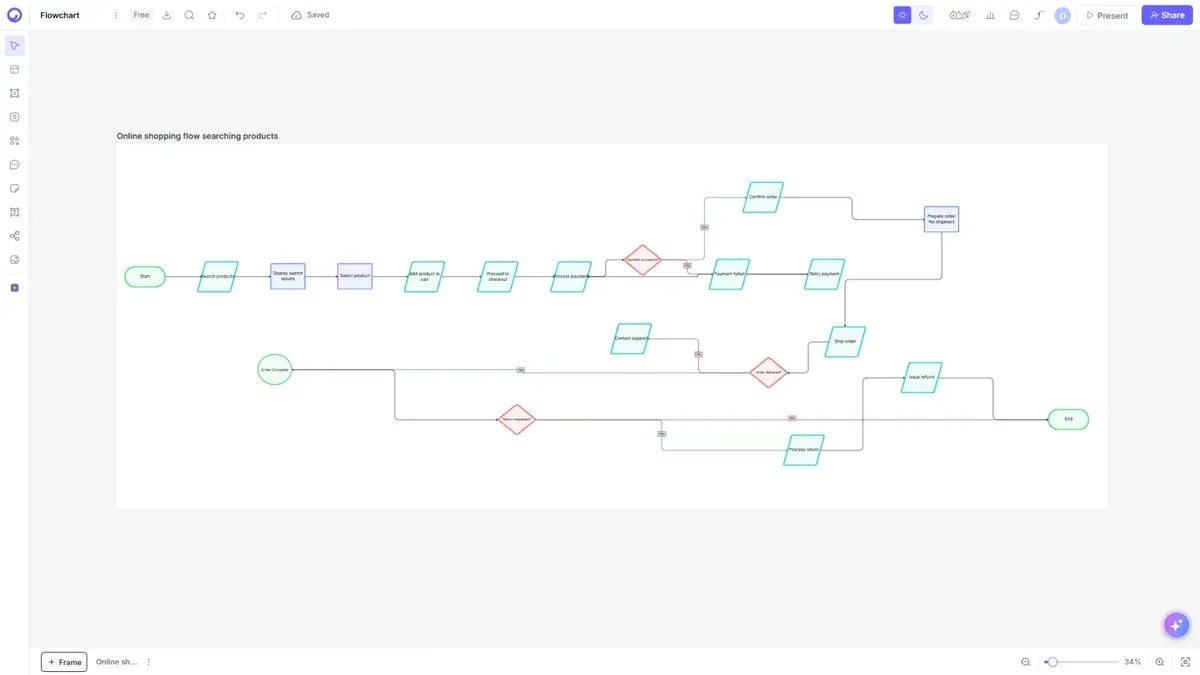
The top bar
The bar across the top of the editor holds board-level actions:
| Control | What it does |
|---|---|
| Board Actions (⋮) | Create New File, Make a copy, Board details, Background, Version history 🔒, Hide Descriptions, Delete |
| Board title | Click to rename the board |
| Export / Download | Export the board as an image or data file — see Import & Export |
| Find | Search for elements on the board |
| Add to Favourite | Star the board for quick access |
| Undo / Redo | Step backward or forward through changes |
| Theme toggle | Switch the canvas between light and dark |
| Facilitation tools & reactions | Timer, voting, and reactions for live sessions |
| Chart | Insert a chart |
| Comment | Add comments and @mention teammates |
| Show Animation | Animate how the board is built |
| Collaborators | See who else is on the board |
| Present | Enter full-screen presentation mode |
| Share | Invite people and set access — see Sharing & Collaboration |

The left toolbar
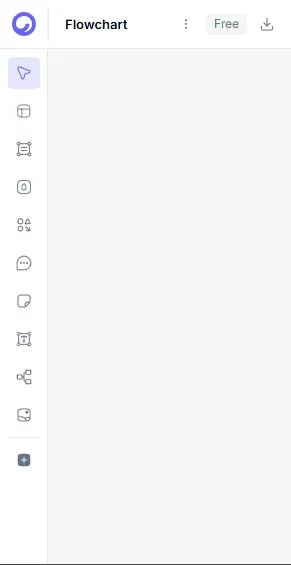
The vertical toolbar on the left is where you add content to the canvas:
| Tool | What it adds |
|---|---|
| Select | Select, move, and resize elements |
| Templates | Insert a template into the board |
| Frames | Add frames or sections (also used as presentation slides) |
| Add Theme | Apply a consistent visual theme |
| Shapes and Lines | The full shape library and connectors (see below) |
| Comment | Drop a comment |
| Sticky Notes | Add sticky notes for brainstorming |
| Text | Add text blocks |
| Mind Maps | Add mind-map nodes |
| Images and Icons | Insert images and icon sets |
| More Tools | Additional tools like tables and connectors |
The shape library
Open Shapes and Lines to browse thousands of shapes, organized by category:
- General / Basic shapes — rectangles, circles, and common building blocks
- Flowchart — process, decision, and terminator shapes
- Containers & Arrows — grouping frames and connectors
- UML — software design (classes, sequences)
- Entity-Relationship (ER) — database modeling
- Wireframe / Mockups — UI design elements
- Network — network topology
- AWS · Azure · GCP — official cloud provider icons
- Cisco · Kubernetes · iOS / Android — infrastructure and platform icons
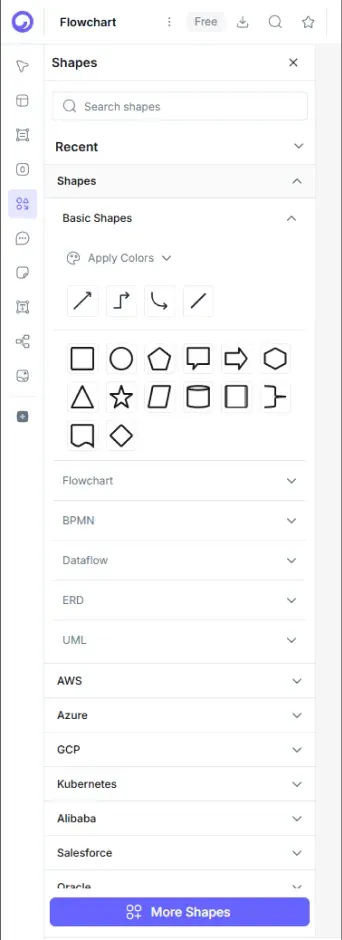
Tip: Drag any shape onto the canvas, then connect shapes by dragging from a shape's edge to create a connector.
Board-level features
- Real-time collaboration — teammates edit the same board simultaneously; you'll see their cursors and presence.
- Comments & mentions — leave threaded feedback and @mention people.
- Version history 🔒 — restore an earlier version of the board (paid plans).
- Present mode — present your board full-screen without exporting.
Next steps
- Learn which diagram to use in Diagram Types
- Generate boards with Cloudairy AI