
Home & Navigation
This page explains the Cloudairy interface so you can find everything quickly.
The Home dashboard
Home is your launchpad. It shows a "Create a new board" strip with recommended templates at the top, and your Recent design and Templates below.
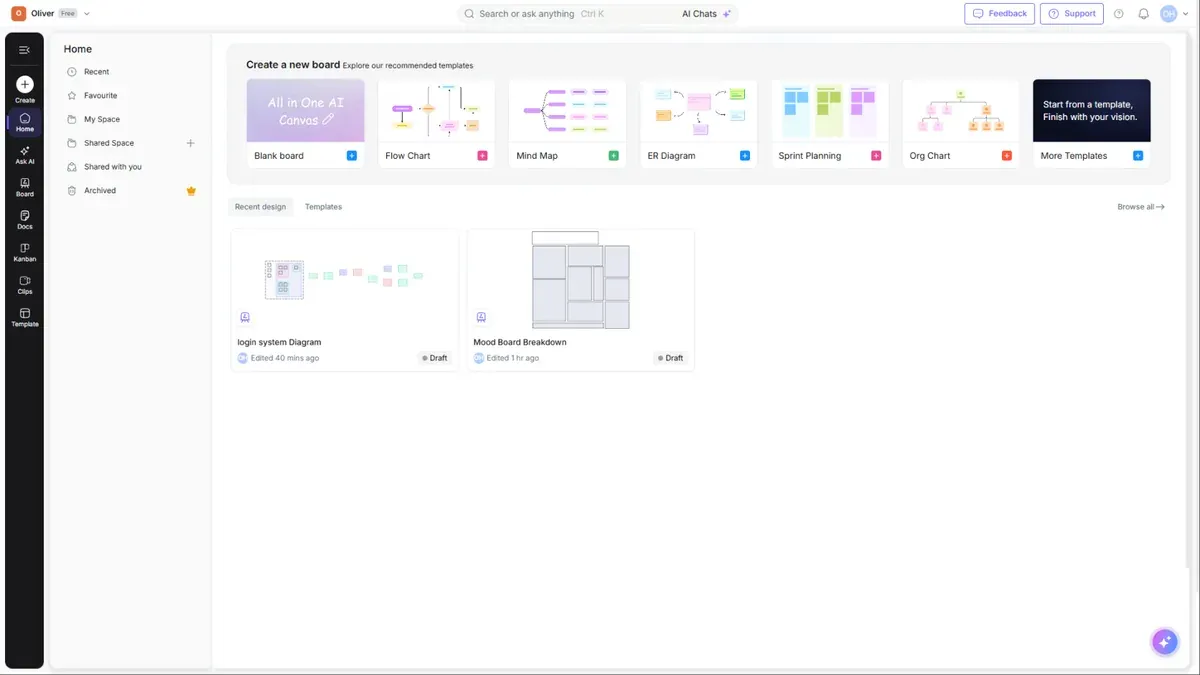
The app left rail
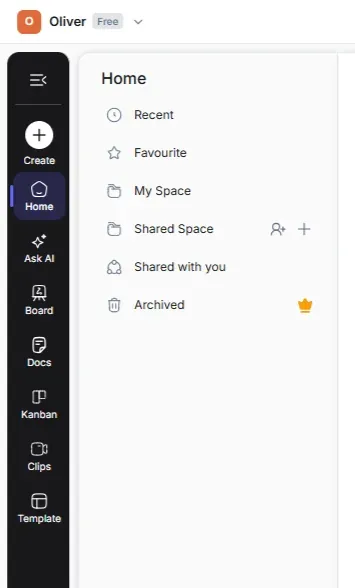
The narrow icon bar on the far left takes you to the main areas of Cloudairy:
| Icon | Takes you to |
|---|---|
| Create | Menu to create a Board, Doc, Kanban, Clip, Folder, or with AI |
| Home | The Home dashboard |
| Ask AI | The Cloudairy AI hub |
| Board | All your boards |
| Docs | All your documents |
| Kanban | All your project boards |
| Clips | Your screen recordings |
| Template | The template gallery |
| Invite | Invite teammates |
| Upgrade | Compare plans and upgrade |
The Home side panel
Next to the icon rail, the Home side panel filters your Home view to exactly the set of work you want:
| Item | What it shows |
|---|---|
| Recent | Items you opened recently |
| Favourite | Items you've starred |
| My Space | Your personal space and its folders |
| Shared Space | Team spaces (use + to create one) |
| Shared with you | Items other people shared with you |
| Archived 🔒 | Items you've archived |
Tip: Star a board with the ★ icon to pin it under Favourite for one-click access later.
The top bar
The bar across the top is available everywhere:
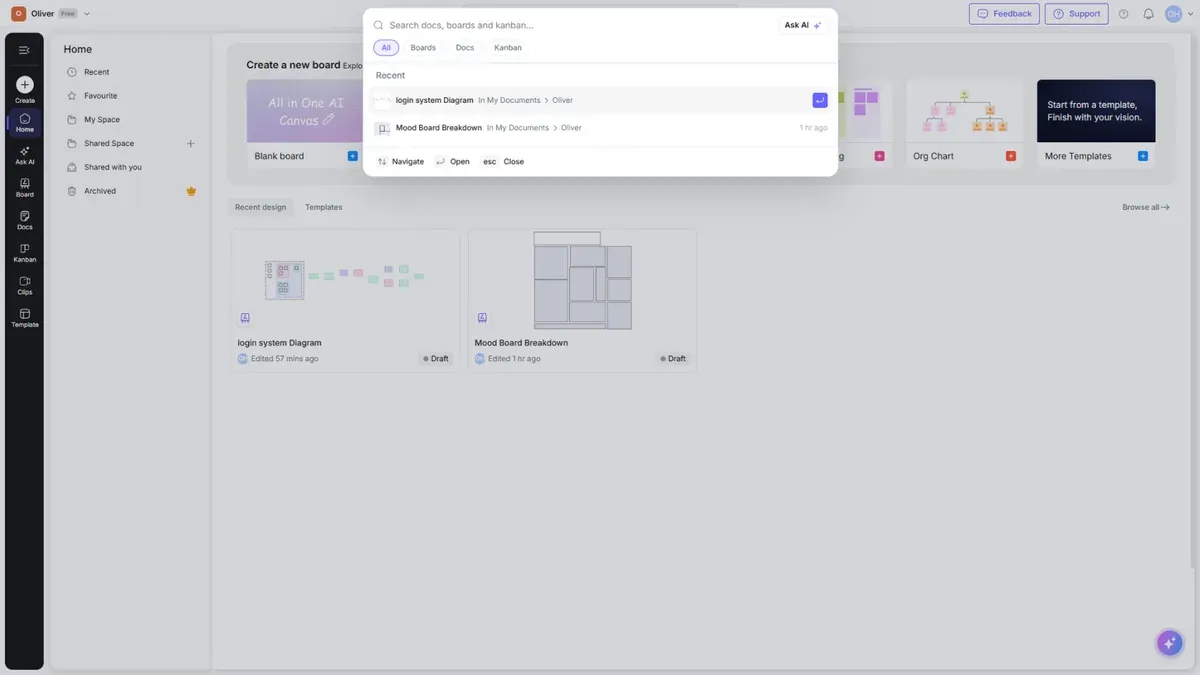
- Search / Ask anything (
Ctrl K) — find any board, doc, or template, or ask AI. - AI Chats — jump into a Cloudairy AI conversation.
- Feedback — send us product feedback.
- Support — open a support request.
- Notifications (🔔) — activity, comments, shares, and invites.
- Profile menu — your profile, archived items, and log out.
Switching workspaces
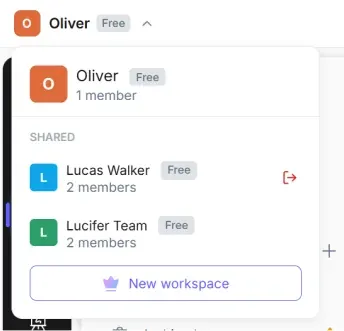
If you belong to more than one workspace, use the workspace switcher in the top-left corner to move between them. Each workspace has its own boards, members, and plan.
Light and dark mode
Cloudairy supports both light and dark themes. Toggle the theme from the appearance control to match your preference.
Next steps
- Start making things in Creating Content
- Dive into the editor in Boards & Canvas Editor