
Notifications
The notification center keeps you up to date on activity across your workspace. Select the bell icon (🔔) in the top bar to open it.
What you'll be notified about
- Shares — when someone shares a board or doc with you
- Comments & mentions — when someone comments or @mentions you
- Invitations — when you're invited to a workspace
- Requests — when someone requests access to your content
Managing notifications
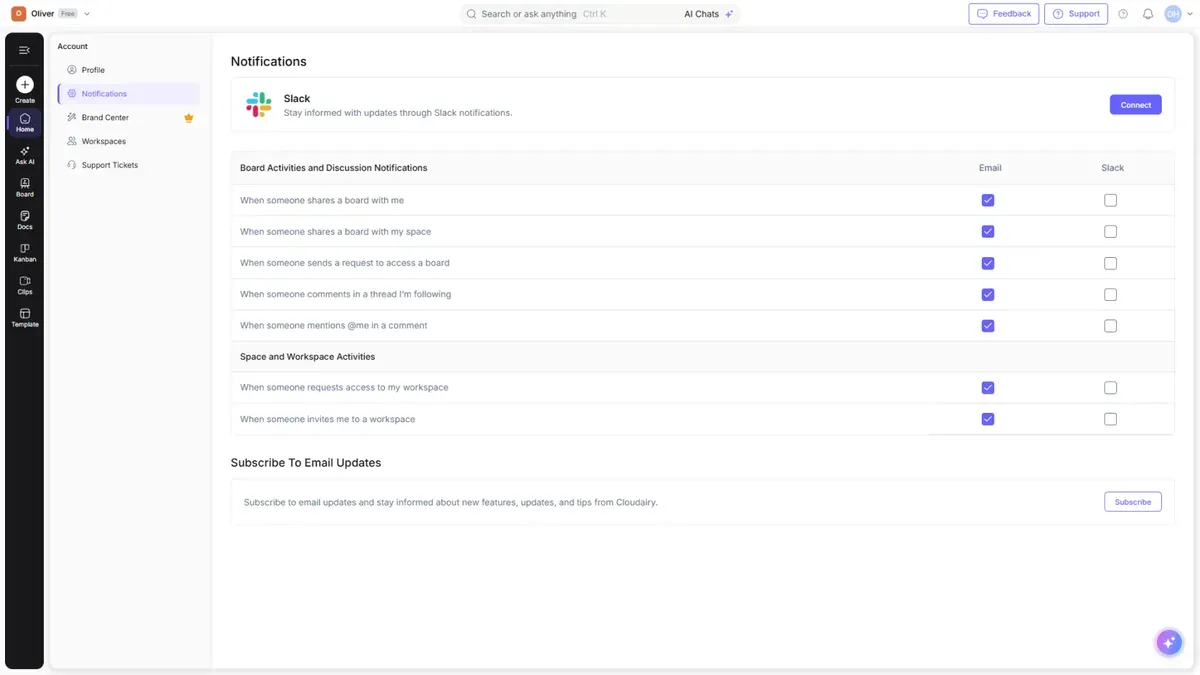
Open Notifications in your account settings to control which alerts you receive.
What is the Connect Slack option in Notifications?
Connect Slack links your Cloudairy account to Slack so that the things you would normally see in the notification bell are also delivered to you in Slack. It means you can keep working in Slack and still hear about a board someone shared with you, a comment on a thread you follow, or an @mention, without watching Cloudairy for a red dot.
The connection is per person, not per workspace. Connecting Slack sets up notifications for your own account only; it does not switch Slack on for your teammates, and each person who wants Slack notifications connects their own account.
How do I set up the Slack integration?
- Open Profile → Notifications. The Slack card sits at the top of the page: "Slack — Stay informed with updates through Slack notifications."
- Select Connect. Cloudairy sends you to Slack to authorize the connection.
- Approve the request in Slack, choosing the Slack workspace you want to connect.
- Slack returns you to the Notifications page, and Cloudairy sends you a confirmation message in Slack: "Hi! Thanks for turning on Cloudairy notifications in Slack!" — receiving that message is how you know the connection worked.
How does it work once connected?
The notification list on that same page has two columns of checkboxes, Email and Slack. Connecting Slack does not by itself start sending anything — you then tick the Slack box on each notification you want delivered there. The two columns are independent, so you can send some notifications to email, some to Slack, and some to both.
Slack notifications arrive as a direct message to you from Cloudairy, and the ones about a board include a link straight to it.
What notifications can I receive through Slack?
Under Board Activities and Discussion Notifications:
- When someone shares a board with me
- When someone shares a board with my space
- When someone sends a request to access a board
- When someone comments in a thread I'm following
- When someone mentions @me in a comment
Under Space and Workspace Activities:
- When someone requests access to my workspace
- When someone invites me to a workspace
How do I disconnect Slack?
Use the disconnect option on the Slack card in Profile → Notifications. Disconnecting removes the link to your Slack account and also switches off every Slack checkbox in the notification list, so nothing is left half enabled. Your Email notification choices are untouched. If you reconnect later, tick the Slack boxes you want again.
Tip: Mentions are the fastest way to get a specific person's attention — @mention them in a comment and they'll see it in their notifications.