
Creating Content
Everything you make in Cloudairy starts from the Create button in the left rail. It opens the Create menu, where you choose what to build.
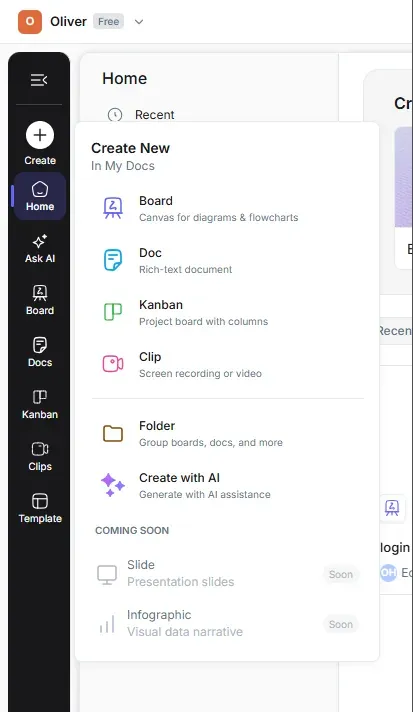
What you can create
| Type | What it is | Best for |
|---|---|---|
| Board | An infinite canvas for diagrams and flowcharts | Diagrams, whiteboards, architecture, wireframes |
| Doc | A rich-text document | Notes, specs, meeting notes, written content |
| Kanban | A project board with columns | Task tracking, sprints, workflows |
| Clip 🔒 | A screen or video recording | Async walkthroughs and explanations |
| Folder | A container to group boards, docs, and more | Organizing related work |
| Create with AI | Generate content from a prompt | Fast starts when you're not sure where to begin |
Note: Slide (presentation slides) and Infographic (visual data narrative) are marked coming soon in the Create menu.
To create something
- Select Create in the left rail.
- Choose a type from the menu.
- Pick where it should live (a space or folder), if prompted.
- Start working — your new item opens right away and autosaves.
Tip: You can also create a board directly from the "Create a new board" strip on Home, or generate one with Cloudairy AI.
Where new items go
New items are created in the location you choose — your My Space, a Shared Space, or a Folder. You can move them later. See Organizing your work for how spaces and folders fit together.