
Workspaces & Teams
A workspace is where your team's boards, members, and billing live. You can belong to several workspaces and switch between them from the top-left workspace switcher.
Your workspaces
Open Profile → Workspaces to see every workspace you belong to, along with its members, plan, and your role.
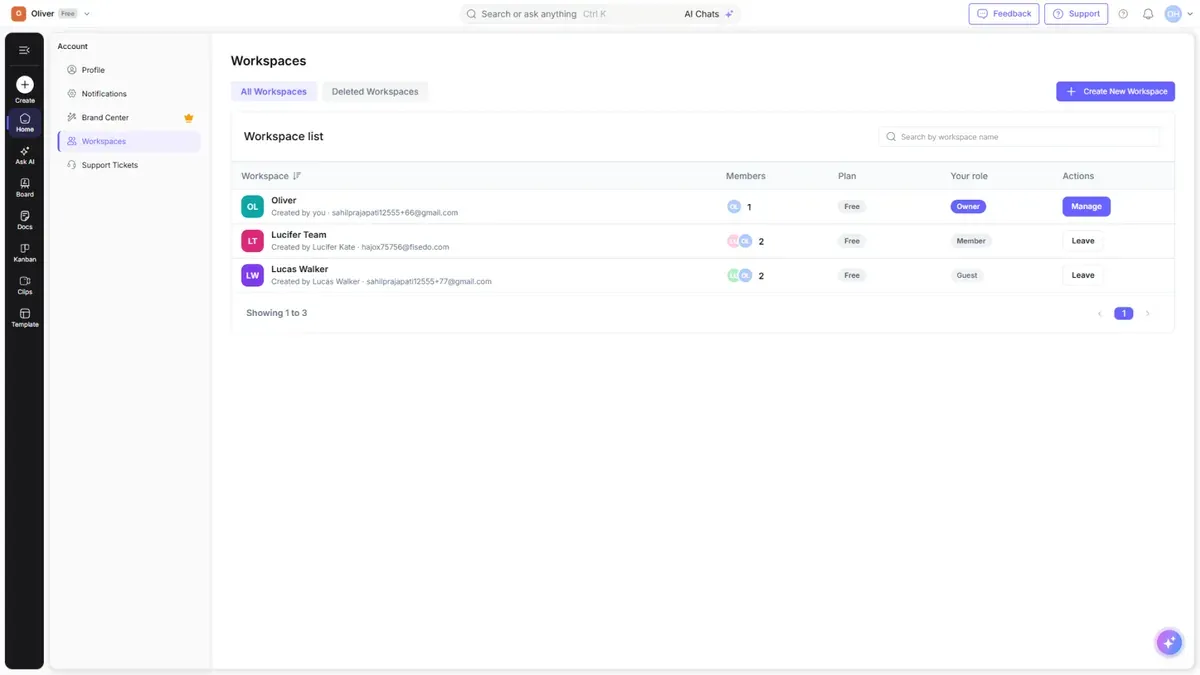
- Create New Workspace — start a fresh workspace (available on Business and Enterprise plans).
- Manage — open a workspace's settings.
Managing a workspace
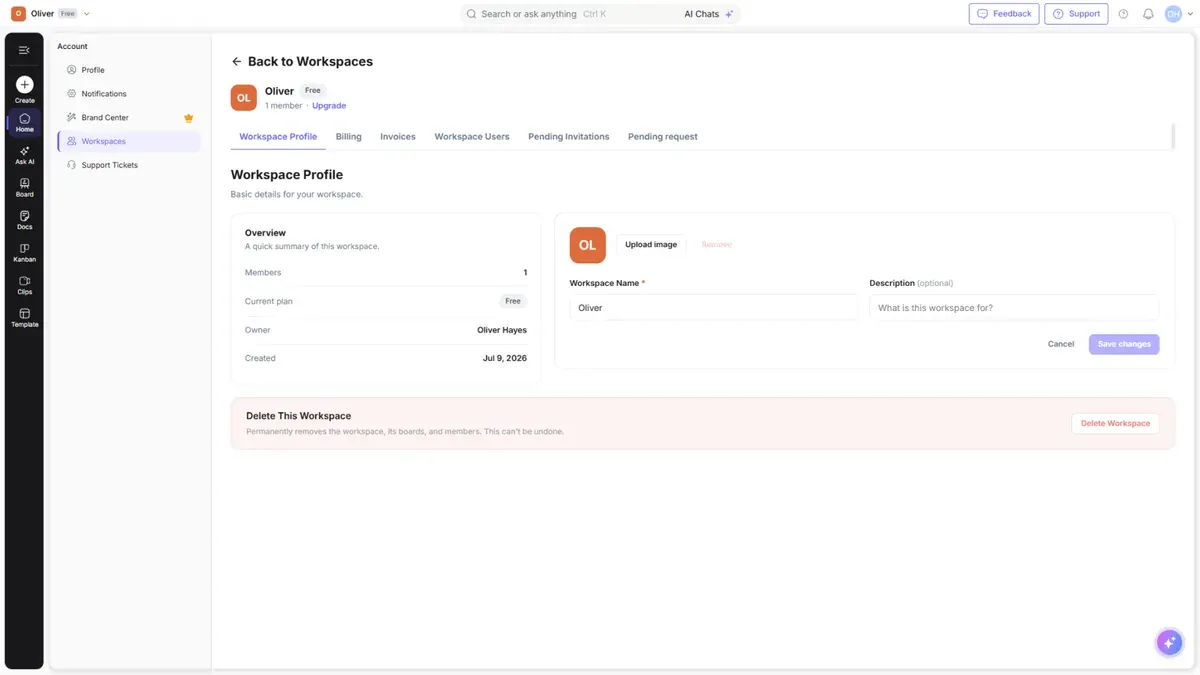
Select Manage on a workspace to open its settings tabs:
| Tab | What it's for |
|---|---|
| Workspace Profile | Name, description, image, and deleting the workspace |
| Billing | Your plan, seats, and billing interval |
| Invoices | Download past invoices |
| Workspace Users | See and manage members |
| Pending Invitations | Invitations you've sent that aren't accepted yet |
| Pending request | People who've requested to join |
Inviting members
- Select Invite in the left rail, or open Workspace Users.
- Enter the person's email.
- Choose their access (Admin, Member, or Guest — see Sharing & Collaboration).
Each paid member uses one seat at your plan's per-user price. Adding a member mid-cycle is prorated.
Managing your team
Your team members live under Workspace → Manage → Workspace Users. From there you can:
| Action | How |
|---|---|
| View members | See everyone in the workspace, their role, and status |
| Change a role | Update a member between Admin, Member, or Guest |
| Remove a member | Remove someone from the workspace (frees their seat) |
| Resend an invitation | Re-send a pending invite from Pending Invitations |
| Approve / decline a request | Handle join requests under Pending request |
Tip: Removing a paid member frees their seat, which another person can then use — you're only billed for occupied seats.
Leaving a workspace
If you're a member (not the owner) of a workspace you no longer need:
- Go to Profile → Workspaces.
- Find the workspace and choose Leave Workspace.
- Confirm when prompted.
Note: Owners can't leave their own workspace — you either transfer it or delete it. Leaving frees your seat for someone else.
Domains (Business & Enterprise)
On higher plans, admins can allow people with your company's email domain to join automatically, and configure SSO.
- Go to Profile → Workspaces → Manage → Manage Domains.
- Select Add Domain and enter your company domain (e.g.
yourcompany.com). - To remove one, select Delete next to the domain.
Deleting a workspace
- Go to Profile → Workspaces and select Manage on the workspace.
- Open the Workspace Profile tab.
- Scroll to Delete This Workspace and select Delete Workspace.
- Confirm when prompted.
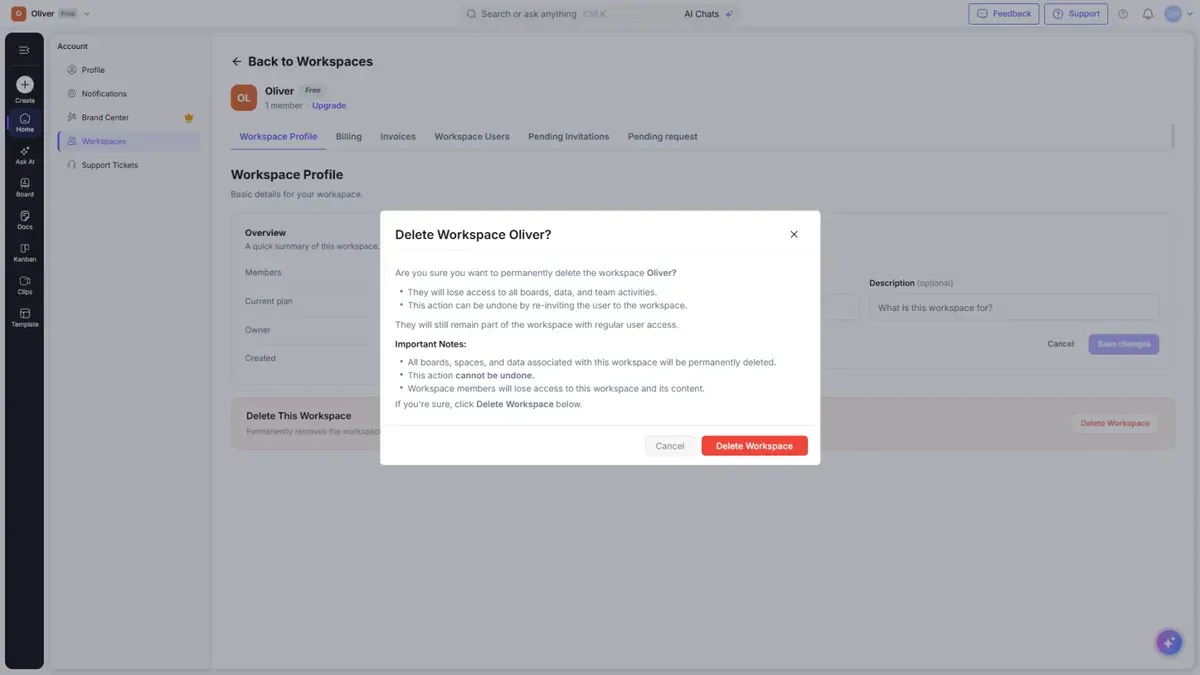
Warning: Deleting a workspace permanently removes it, all of its boards, docs, and members. This can't be undone. If the workspace has a paid subscription, cancel it first (see Pricing & Plans).
Restoring a deleted workspace
Recently deleted workspaces can sometimes be recovered:
- Go to Profile → Workspaces.
- Open the Deleted Workspaces tab.
- Find the workspace and select Restore.