
Diagram Types
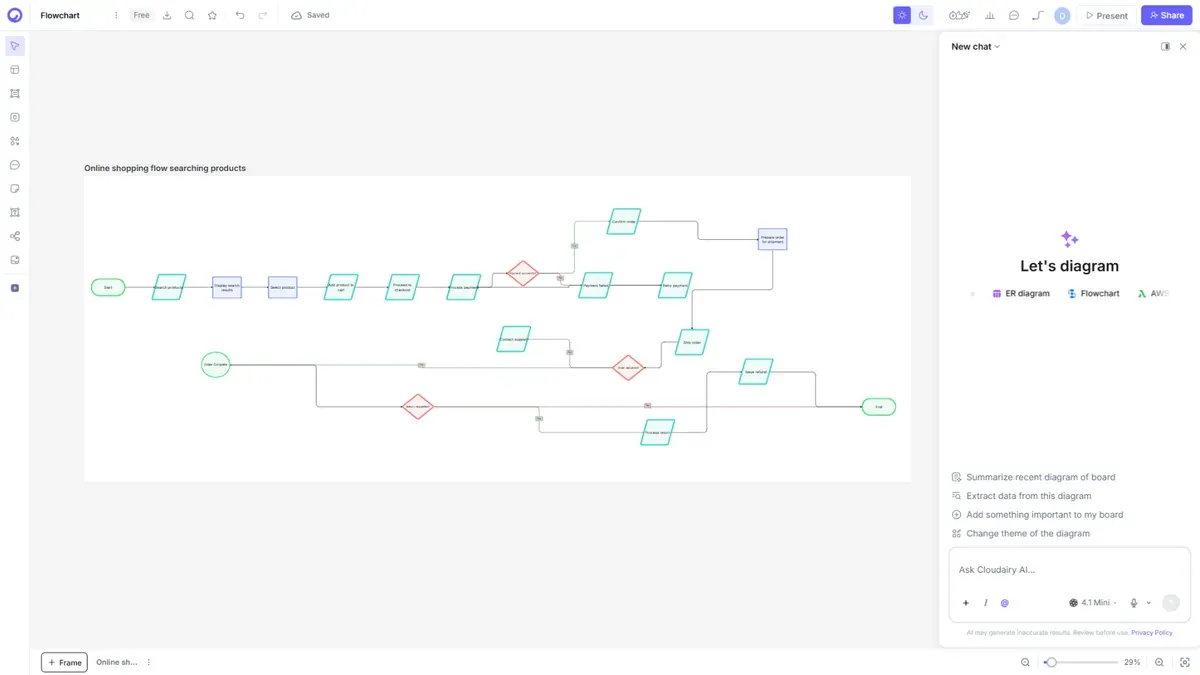
Cloudairy supports many diagram types. You can build any of them three ways: from a template, from Cloudairy AI (describe it in a prompt), or by hand with the shape library.
| Diagram | What it's for |
|---|---|
| Flowchart | Show a process or decision flow step by step |
| Mind Map | Branch ideas out from a central topic |
| ER Diagram | Model database entities and relationships |
| UML | Design software — class, sequence, and state diagrams |
| Sequence Diagram | Show how components interact over time |
| Wireframe | Sketch UI layouts and screens |
| Whiteboard | Free-form brainstorming and collaboration |
| Timeline | Lay out events or milestones in order |
| Gantt Chart | Plan project schedules and dependencies |
| Org Chart | Map team and reporting structure |
| Cloud Architecture | Design AWS, Azure, and GCP systems with official icons |
| Sprint Plan | Plan a sprint with backlog and tasks |
| All-in-One AI Canvas | Start blank and let AI generate whatever you describe |
Building a diagram from a template
- Open the Template gallery or the Templates tool in the editor.
- Pick a template that matches your diagram type.
- Select Use template — it opens as a ready-to-edit board.
Building a diagram with AI
- Open Cloudairy AI (or the AI popover inside a board).
- Describe what you want — e.g. "a flowchart for our onboarding process" or "an AWS architecture with a load balancer, two EC2 instances, and an RDS database."
- Cloudairy AI drafts the diagram on a board, ready to refine.
Tip: For cloud architecture, name the services you want (S3, CloudFront, EC2, RDS…) and Cloudairy AI will place the correct provider icons.
Building a diagram by hand
- Create a Board and open Shapes and Lines.
- Choose the category for your diagram (Flowchart, UML, AWS, etc.).
- Drag shapes onto the canvas and connect them.