
Cloudairy AI
Cloudairy AI generates diagrams, documents, and images from a text prompt. Select Ask AI in the left rail to open the AI hub, or use the AI popover inside any board.
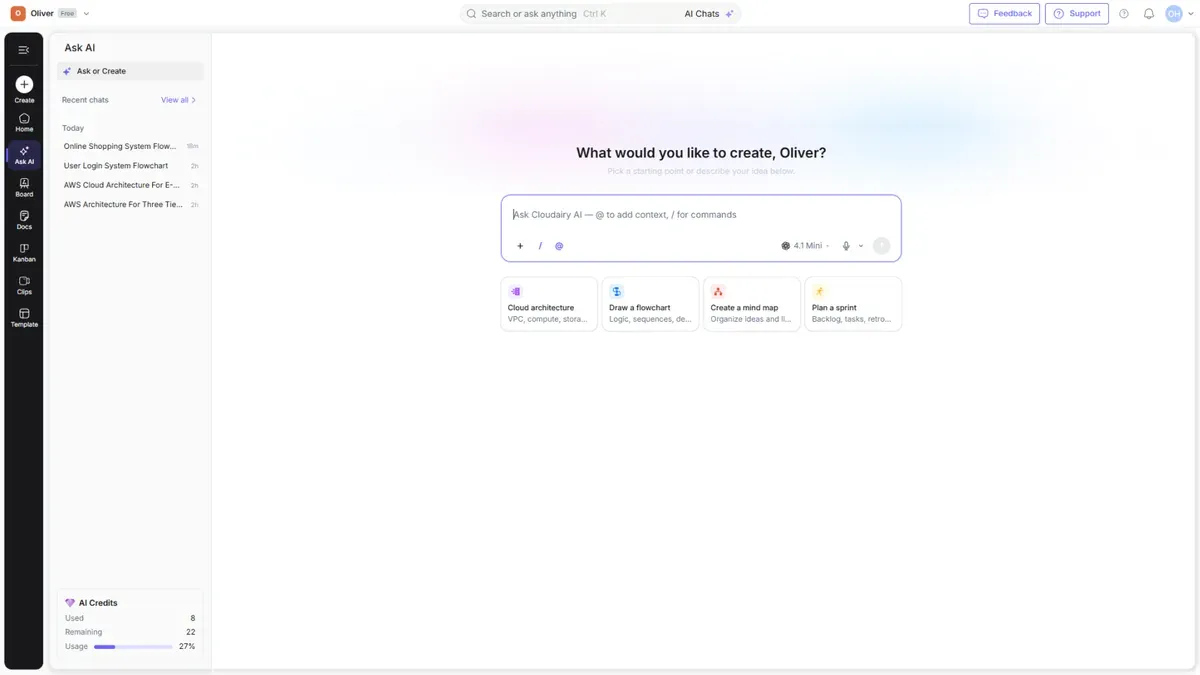
The Ask AI hub
- Prompt box — type what you want, or use
@to add context and/for commands. - Quick actions — one-click starters: Cloud architecture, Draw a flowchart, Create a mind map, Plan a sprint.
- Recent chats — revisit past conversations.
What are the buttons in the Ask AI prompt box?
The prompt box reads Ask Cloudairy AI — @ to add context, / for commands, and the row of controls under it does the following. + attaches a file to your prompt. / opens the command list. @ adds context, such as an existing board or document, so the AI answers with your own content in view. On the right sit the model picker, a microphone button, and the send button.
Can I use voice input instead of typing?
Yes. The microphone button sits in the prompt box, between the model picker and the send button, and it lets you dictate your prompt by speaking instead of typing it out.
Select the microphone and speak your request — for example "create a flowchart for our onboarding process" — and your speech is entered into the prompt box as text. The first time you use it, your browser asks for permission to use the microphone; you need to allow that for voice input to work, and if you have previously blocked microphone access for Cloudairy you will need to re-enable it in your browser's site settings.
Voice input only fills in the prompt. Nothing is sent to the AI until you select send, so you can read back what was captured and edit it first — useful when dictating technical terms or product names.
What is the Library feature in Ask AI?
Every conversation has its own Library. Open a chat and use the Chat / Library toggle at the top right to switch between the conversation itself and its Library.
The Library collects the diagrams generated by the AI in that conversation, along with any diagrams you shared into it as context, and shows a count next to the heading. You can browse them as a Grid or a List. Selecting a diagram previews it full screen, and each item has two actions of its own: Use as context feeds that diagram back into your next prompt, so you can ask for changes based on it, and the download icon saves it. Diagrams can be downloaded as PNG, SVG, or Markdown.
The Library is per-conversation, so a diagram you generated in one chat appears in that chat's Library rather than in a single global list.
How do I export my Ask AI conversation?
Open the conversation and select the … menu at the top right, next to the Chat / Library toggle. It offers Rename, Export, and Delete. Export saves the conversation itself; to save an individual diagram instead, open the conversation's Library and use the download action on that diagram, which offers PNG, SVG, and Markdown.
Note that Delete in this menu removes the whole conversation, so use Export first if you want to keep a copy.
What can I do with an AI answer?
Under each AI response is a row of actions: thumbs up and thumbs down to rate the answer, a play action, copy, and regenerate — regenerate asks the AI for a fresh attempt at the same prompt. The credit cost of that response is shown on the same row, next to how long ago it was generated, so you can see exactly what each generation cost.
Choosing a model
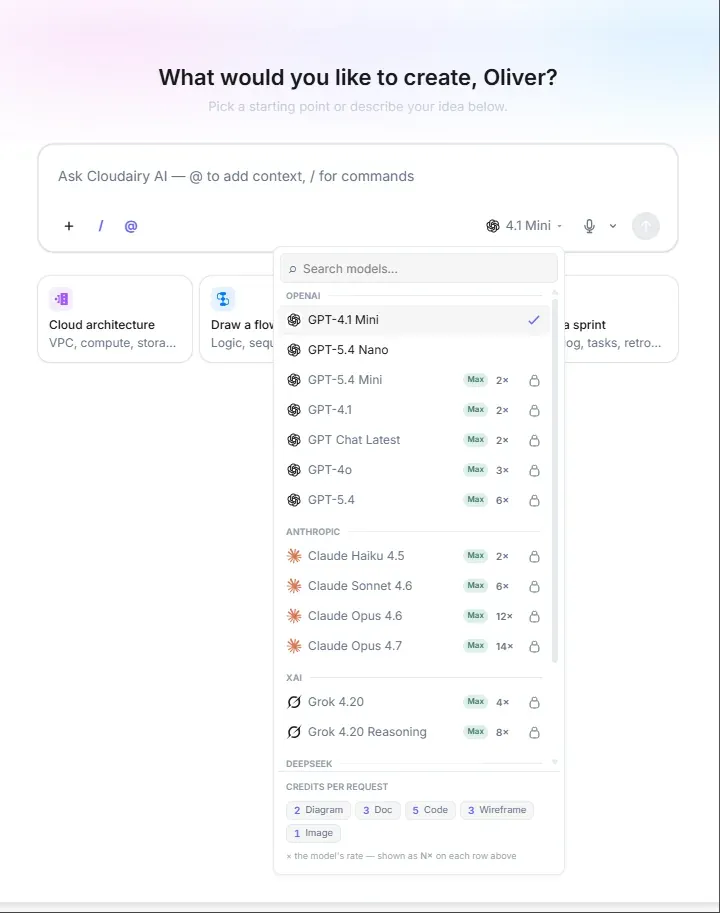
Use the model picker to choose which AI model runs your request. Lighter models are faster and cost fewer credits; more powerful models produce richer output and cost more. The models available to you depend on your plan.
AI inside a board
Open the AI popover on a board (the sparkle button) to generate or edit content directly on the canvas — add a diagram, expand a mind map, or rewrite a text block without leaving your work.
AI Credits
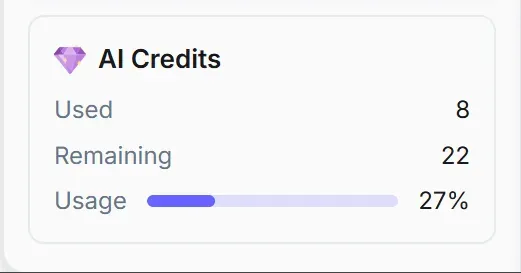
Every AI request uses credits. The AI Credits meter (in the Ask AI panel) shows how many you've used and how many remain this period.
How AI credits are calculated
This is the part worth understanding, because it lets you stretch your quota.
Credits per request = _action base cost_ × _model tier multiplier_
1. Each plan has a monthly credit quota (resets every billing period):
| Plan | AI credits / month |
|---|---|
| Free | 30 |
| Starter | 600 |
| Business | 2,000 |
| Enterprise | 5,000 |
2. Each type of request has a base cost:
| Action | Base credits |
|---|---|
| Image | 1 |
| Diagram | 2 |
| Document | 3 |
| Wireframe | 3 |
| Code | 5 |
| Template search | 0 (free) |
| Greetings / clarifying questions | 0 (free) |
3. The model multiplies that cost. A lighter model is 1×; a more powerful model costs more. For example, a diagram (base 2) with a 2× model costs 2 × 2 = 4 credits.
Tip: To make your credits last, use a lighter model for simple diagrams and save the most powerful models for complex work. Greetings, clarifying questions, and template searches never cost credits.
Note: Unused credits do not roll over to the next month. Higher plans also unlock more powerful models (for example, Business and Enterprise unlock premium models).